
User Guide
This document is updated with each release.
Current relevant version - 0.8.2 Beta released on 06 August 2026
Previous version 0.8.0 Beta released on 17 June 2026
The current User Guide serves the minor release version 0.8.2.b, based on the previous 0.8.0.b
Changelog: 0.8.0.b to 0.8.2.b
- Bug fixes:
- Fixed: Older unsupported CUDA devices now fall back to CPU without failing to initialise.
- Fixed: Very large data sets caused memory use to climb during clustering. Memory now remains stable.
- Fixed: Debug logger failed to capture clustering, now logs properly.
- Fixed: On multi-monitor setups with different display scaling, the taskbar button now follows the window to the correct monitor's taskbar.
- Fixed: The dyslexia-friendly fonts no longer render oversized compared to the regular text.
- Fixed: Text boxes no longer show the browser's autofill suggestions or spellcheck squiggles.
- Features and Enhancements:
- Much faster clustering on app restarts (when the library has not changed)
- Photos tagged with a hidden person no longer show up in the group photos of a visible person.
- A toggle has been added in the settings UI so those group photos can still be shown.
- The window now resizes from any edge or corner, Maximize keeps the Windows taskbar visible, and double-clicking the title bar maximises or restores.
- A refreshed look: retuned colours in both themes, a curated set of six accent colours with a theme-matched default, styled dropdown menus, and scrollbars that stay out of sight until you scroll.
- Custom accent colour with a full colour picker (newly implemented; unlocked in Advanced Settings).
- Colour-vision assistance now uses replacement palettes and non-colour cues instead of screen filters, and can follow the Windows colour filter automatically.
- New Reduce transparency option that follows the Windows transparency setting automatically.
- Red (destructive) buttons now carry a small caution mark so they are recognisable in every colour-vision mode.
What Is This App?
Felicity (previously called Face Recognition Photo Organizer) is a desktop app for Windows that automatically finds and groups all the photos of the same person across your whole photo collection. Instead of sorting thousands of photos by hand, the app looks at the faces for you and puts every photo of the same person together.
You never have to tag anything manually. You point the app at your photo folders, it does the work, and then you simply give the people real names.
Your original photos are never changed. The app only reads them; it never moves, renames, edits, or deletes them.
New Features in 0.8.2 Beta
Here is what is new in this release (includes 0.8.0.b since it was a major release):
New for 0.8.2
- Faster clustering - the app now groups faces even faster and uses less memory (RAM) doing it.
- Hidden people remain hidden - people you hide stay hidden even when they share a group photo with someone else, so that photo no longer shows up under the other people in it. To see those group photos there is now a toggle in the settings, Show hidden people in group photos (see General Settings).
- If you find that a person is missing photos you know they have, turn that toggle on. The default was left at keeping hidden people hidden because it is the better privacy choice over the long term.
- Older graphics cards fall back to the CPU instead of failing to start the AI, so the app no longer ends up with nothing to show after a scan.
- Resize and maximise like a normal window - drag any edge or corner to resize, double-click the title bar to maximise or restore, and maximising now keeps the Windows taskbar visible instead of covering it.
- A refreshed look - retuned colours in both themes, a curated set of six accent colours, styled dropdown menus, and scrollbars that appear only while you scroll (always visible and thicker, when high contrast is enabled)
- Custom accent colour - pick any colour with a full inbuilt colour picker, including an eyedropper. Newly implemented, so it must first be turned on in Advanced Settings under Custom colours.
- Better colour-vision support - instead of daltonization, the app swaps in specially chosen palettes and adds cues that do not rely on colour, such as the caution mark on red buttons. It can also follow your Windows colour filter automatically.
- Reduce transparency - the blurred, see-through backdrops behind dialogs can be replaced with solid ones; the app follows your Windows transparency setting unless you choose otherwise.
New for 0.8.0 (present in 0.8.2)
- Accessibility options (improved in 0.8.2 and includes an extra option for reduce transparency) increase contrast, bold text, dyslexia-friendly fonts, and colour-blindness assist.
- Export photos into folders - save one person, several people, or everyone into neat per-person folders on your disk. Includes an option (first has to be enabled in Advanced Settings) to use hardlink the organised exported files, which doesn't use any extra storage for the exported photo.
- Reveal a photo in File Explorer - the right-click menu on a photo now opens that photo, already selected, in its source folder.
- Sort, Filter, and Group a person's photos - reorder by name or date, hide certain file types, or split the grid into sections by folder, date, or camera, and other metadata that are available.
- A bigger photo preview with a side panel that shows the photo's details (file name, size, date taken, camera, and more).
- Pin people to the top of the list so your most important people are always easy to find.
- Select several people at once and act on them together (export, pin, or hide).
- Duplicate photos are shown once per person, so a collage or a duplicate file no longer fills the grid with repeats.
- XMP sidecar files - optionally save the face names so other photo apps (like digiKam or Lightroom) can read them.
- A redesigned Settings screen with six clear sections, a new About page, and an improved log with a Normal/Debug detail level.
- Please don't change to normal before the release of
1.0.0as debug logs are only slightly larger in size (a few kb) but helps pinpoints a lot of bugs when you submit a bug report.
- Please don't change to normal before the release of
- A cleaner bottom bar that combines the Settings button, status text, progress bar, and Help button into one row.
- Support for NVIDIA RTX 50-series GPUs for faster grouping on the newest graphics cards.
- Native GPU support is only available on Nvidia RTX series or equivalent Nvidia datacenter and pro GPU. (for now, will be expanded to support AMD and Intel Arc GPU)
- Faster startup (further improved in 0.8.0) - the app no longer re-calibrates when your source photos have not changed.
How It Works
The app works in two simple steps:
- Scan your photos - The app looks through your photo folders one time to find every face.
- Group similar faces - Faces that look alike are automatically put together as the same person.
- Future versions will include custom built combination of AI models to support full body ReID identification support, so photos without faces are also included.
Once the first scan is done, you can change how strict the matching is at any time without scanning everything again. This is fast and you can experiment freely.
Getting Started
First Launch
The first time you open the app, you will see a message that says "No Folders to Scan". This is normal - the app does not yet know where your photos are.
Click the "Take me to settings" button to add your photo folders.
Adding Photo Folders
- Click the Settings button at the bottom-left of the window.
- In the list on the left of Settings, click Folders to Scan.
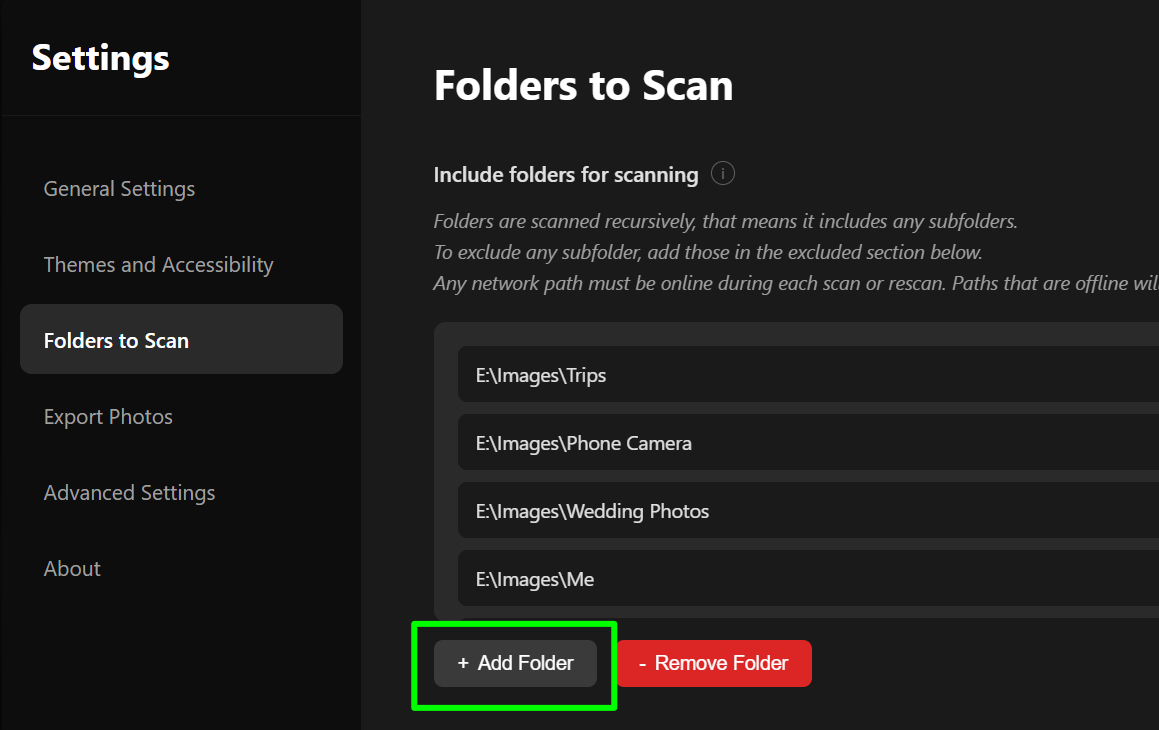
- Under "Include folders for scanning", click the + Add Folder button.
- Choose the folder that has your photos in it, and click OK.
- Repeat for any other photo folders you have.
- Click Close Settings at the bottom-left.
The app now starts scanning your photos automatically. The very first scan can take a while depending on how many photos you have - this is normal, and it only happens once.
Supported photo types: JPG, JPEG, PNG, BMP, GIF, HEIC, and HEIF.
Understanding the Interface
The window has a few main areas: the title bar along the top, the People list on the left, the Photo area on the right, and the Bottom bar along the bottom.
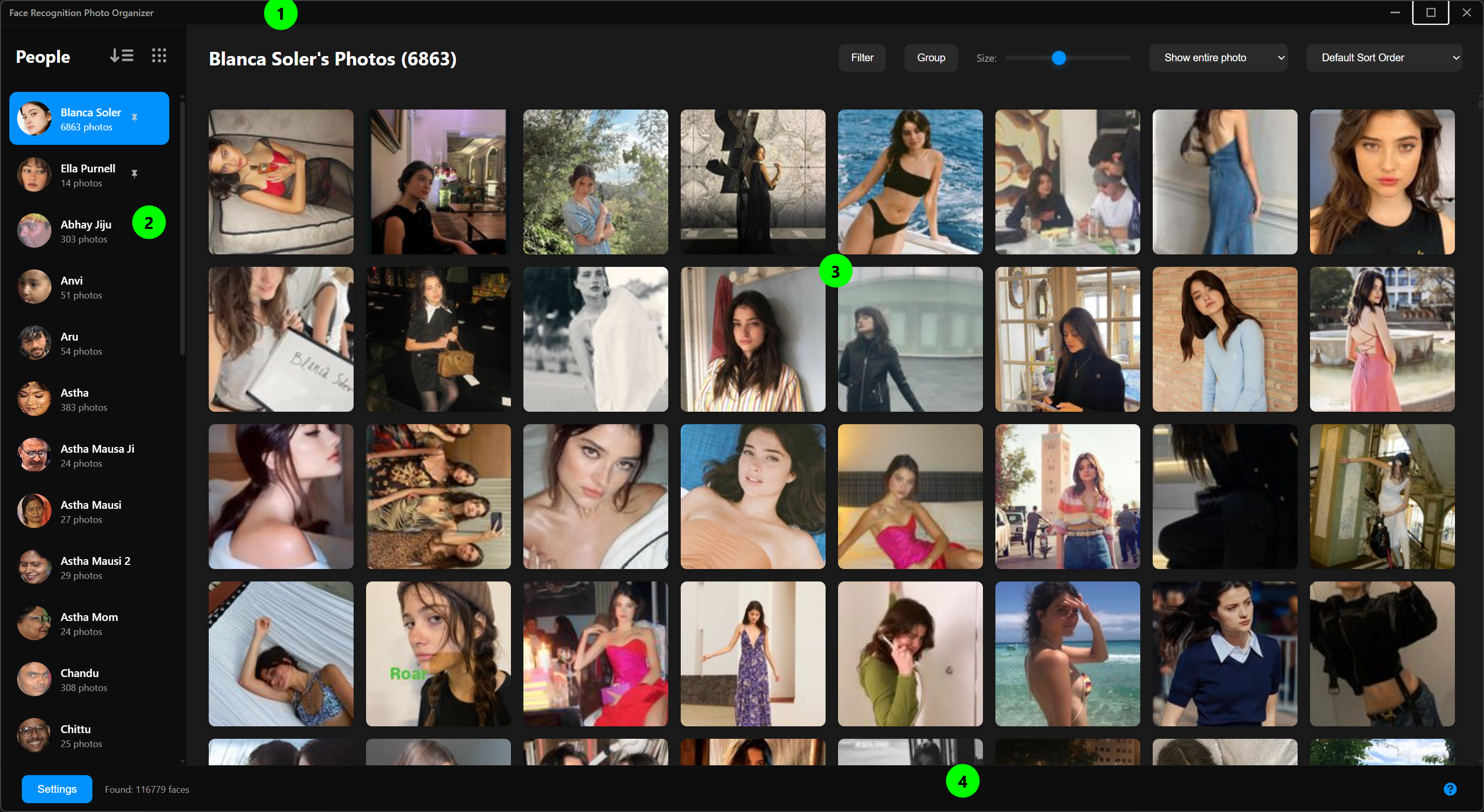
The Title Bar (top of the window)
At the very top-right of the window there are three small buttons:
- Minimize (the dash) - hides the window. If "Close to tray" is on, the app keeps running in the background.
- Maximize (the square) - makes the window fill the screen while keeping the Windows taskbar visible, or returns it to its previous size. Double-clicking the empty part of the title bar does the same.
- Close (the X) - closes the window. If "Close to tray" is on, this hides the app to the system tray instead of quitting it (see General Settings).
The window can be resized by dragging any edge or corner, just like a regular window, down to a minimum size of 1360 x 768.
The People List (left side)
- This shows every person the app has found.
- Until you rename them, people are listed as "Person 1", "Person 2", and so on.
- Each row shows a small face thumbnail and how many photos that person appears in.
- Click a person to see all of their photos on the right.
At the top of the People list there are two small buttons:
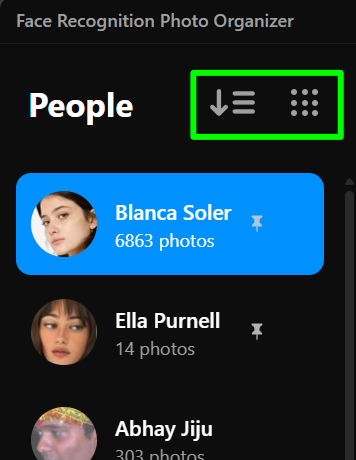
- Sort people (the lines icon) - click it to choose how the list is ordered: by name (A to Z or Z to A) or by number of photos (low to high or high to low).
- Jump to (the grid-of-dots icon) - this appears when you are sorting by name. Click it to get an A-Z list, then click a letter to jump straight to names starting with that letter.
The Photo Area (right side)
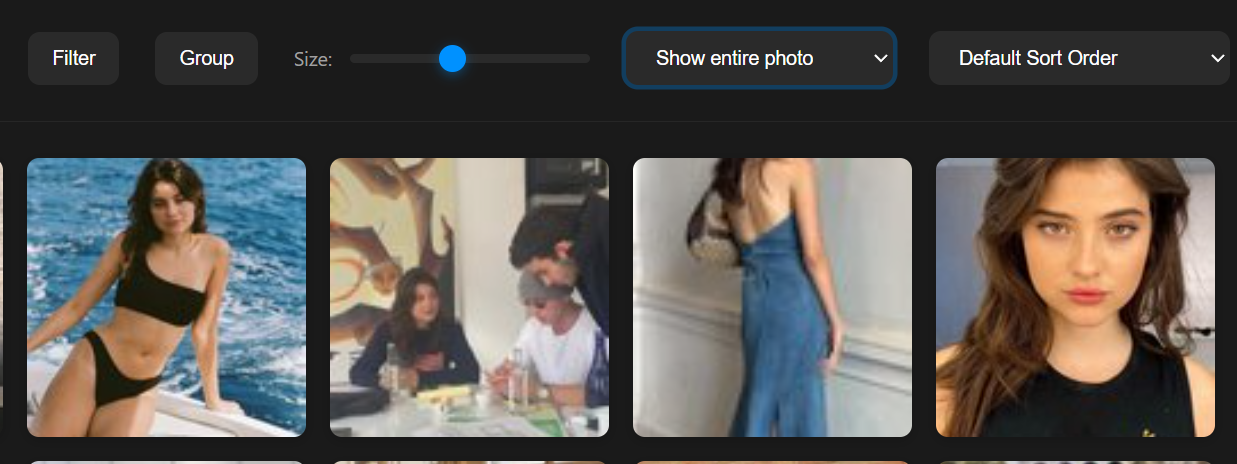
When you click a person, their photos appear here as thumbnails. Along the top of this area you will find:
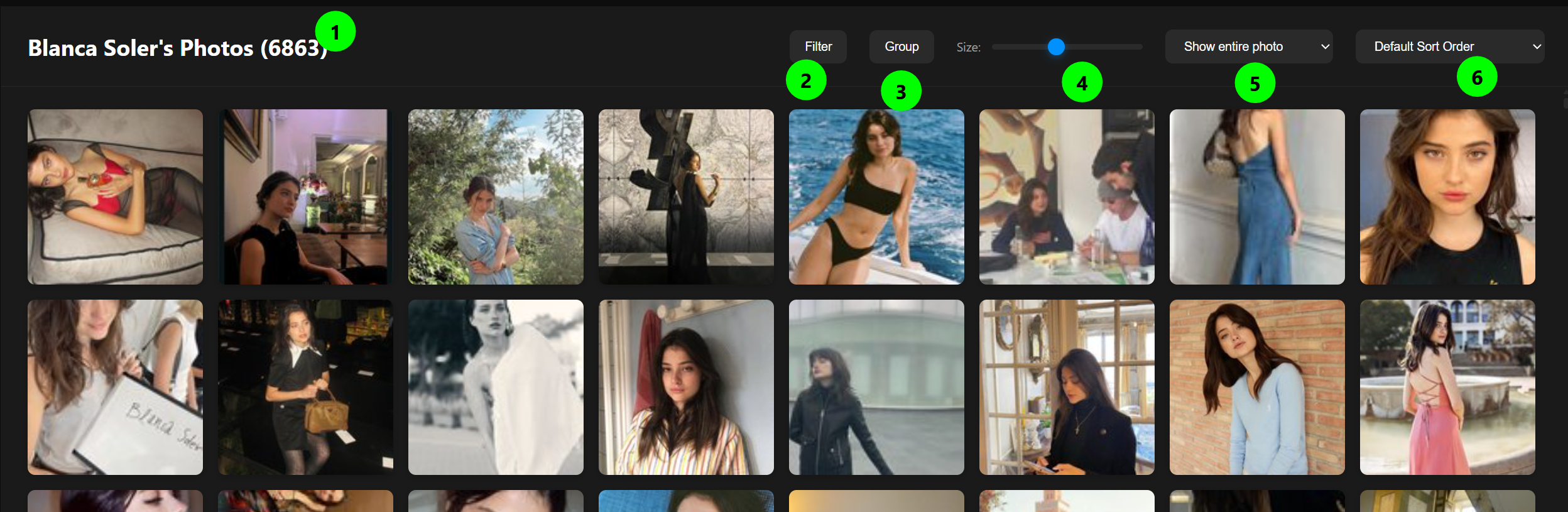
- The person's name on the left.
- Filter button - choose which photos to show (see Filtering Photos).
- Group button - split the photos into sections, for example by date or folder (see Grouping Photos).
- Size slider - drag it left or right to make the thumbnails smaller or larger.
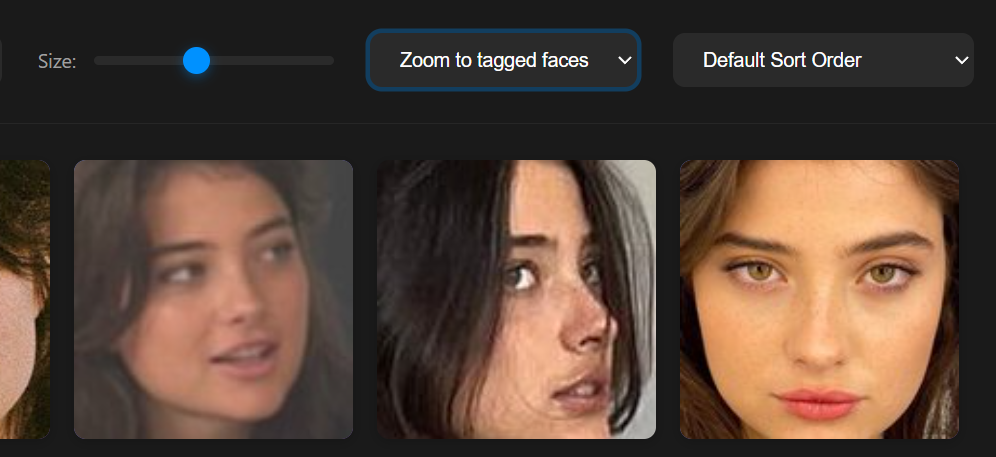
- View mode dropdown:
- Show entire photo (default) - thumbnails show the whole picture.
- Zoom to tagged faces - thumbnails zoom in to just this person's face. This is very handy for finding someone in group photos.
- Sort dropdown - choose the order of the photos (see Sorting Photos).
To work with a single photo:
- Single-click a photo to open a large preview inside the app.
- Double-click a photo to open it in your computer's normal image viewer.
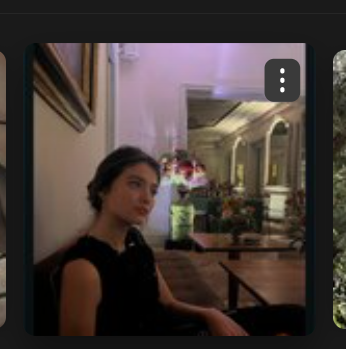
- Right-click a photo (or click its three-dot menu) for more options. The three dot menu appears only on hover.
The Bottom Bar
The bottom of the window is a single row with:
- Settings button (left) - opens the Settings screen.
- Status text (middle) - normally shows something like "Found: 1,234 faces". While the app is busy, it shows what it is doing instead.
- Progress bar - appears only while the app is scanning, exporting, or otherwise working. A Cancel button appears next to it for actions you can stop (such as exporting).
- Help button (right, the "?" icon) - opens a quick tips window.
Working with People
Viewing Someone's Photos
- Click a person's name in the left list.
- All of their photos appear on the right.
- Single-click any photo for a large preview, or double-click to open it in your normal image viewer.
Renaming a Person
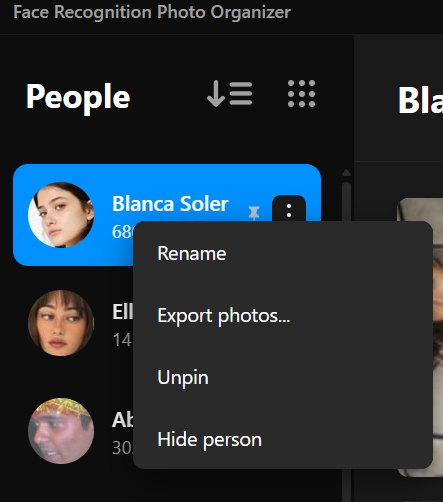
People start with placeholder names like "Person 1". Giving them real names makes everything easier, and the app remembers the name forever.
- Find the person in the left list.
- Click the three-dot menu next to their name (or right-click the row).
- Click Rename.
- Type the person's real name.
- Click Confirm.
From now on, every photo of that person is tagged with that name - even after you change settings or add new photos later.
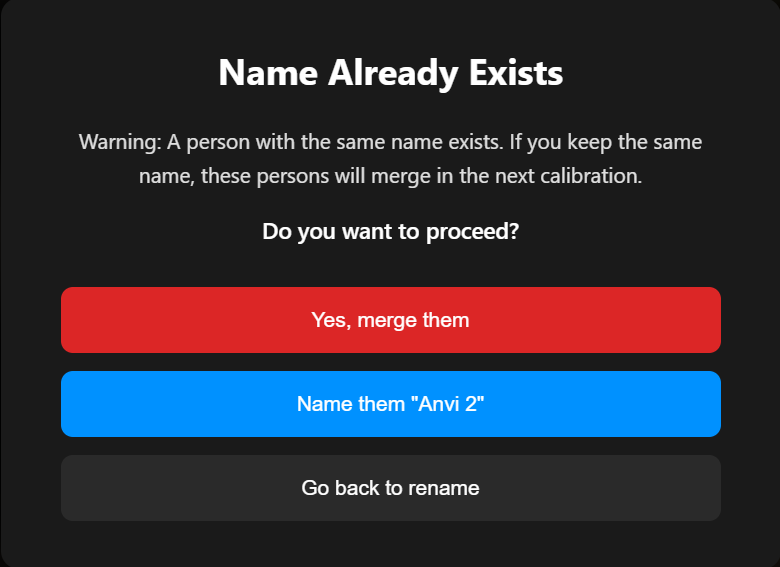
If you type a name that already belongs to someone else, the app asks what you want to do: merge the two people, choose a different name, or go back. This is useful when the same person was accidentally split into two entries - giving them the same name merges them on the next recalibration.
Setting a Cover or Thumbnail (Primary) Photo
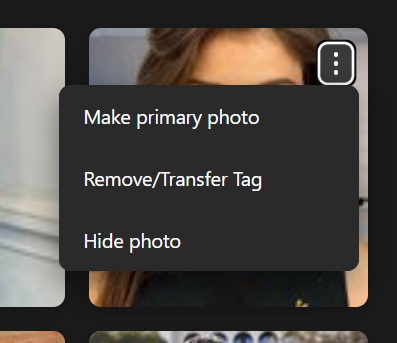
The first photo shown for a person is their "cover" photo (also called the primary photo). You can pick a better one:
- Click the person to show their photos.
- Find the photo you want as the cover.
- Right-click it (or use its three-dot menu) and click Make primary photo.
That person's thumbnail in the People list now uses this photo.
Pinning a Person to the Top
Pinning keeps your favourite or most-used people at the top of the list, no matter how the list is sorted.
- Click the three-dot menu next to a person (or right-click the row).
- Click Pin.
A small pin icon appears on the right edge of that person's row, and they move to the top. To undo this, open the same menu and click Unpin.
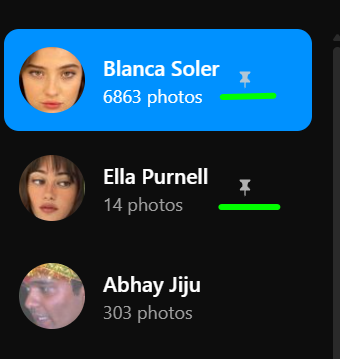
If you pin several people, they all sit at the top together and stay in your chosen sort order among themselves.
Selecting Several People at Once
You can act on more than one person at the same time, the same way you would select multiple files in Windows:
- Ctrl-click a person to add or remove them from your selection.
- Shift-click a person to select everyone between your last click and this one.
- A small bar appears showing how many people are selected, with a Clear button. Pressing Esc also clears the selection.
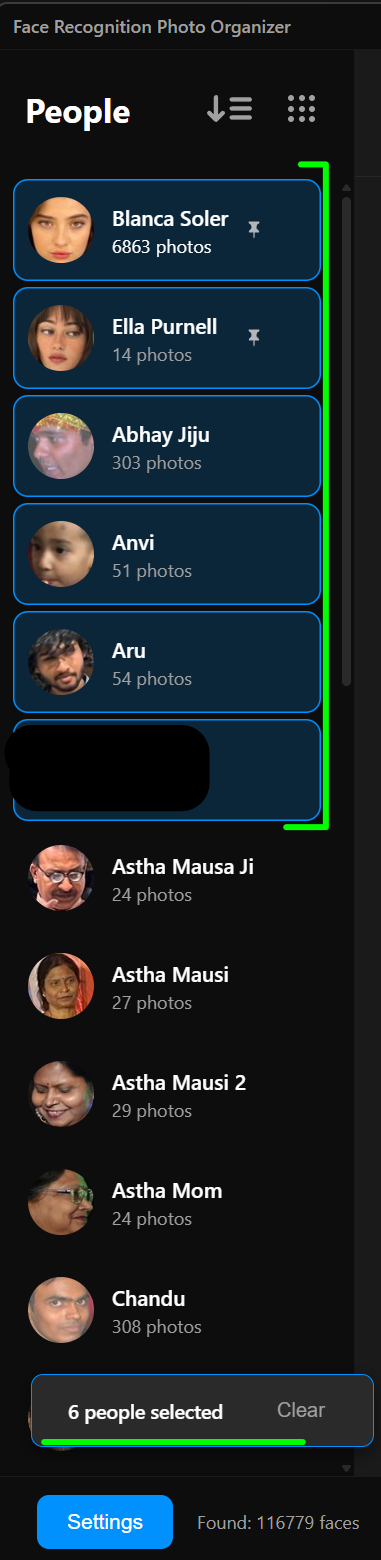
While two or more people are selected, opening the menu (three dots or right-click) shows group actions:
- Export Selected to Folder - save all the selected people's photos at once.
- Pin / Unpin - shown only when all selected people are in the same state.
- Hide / Unhide - shown only when all selected people are in the same state.
Hiding a Person
If someone appears in your photos but you do not want to see them in the list:
- Click the three-dot menu next to their name (or right-click the row).
- Click Hide person.
They disappear from the list. To bring hidden people back, turn on Show hidden person in General Settings. Hidden people then reappear with "(hidden)" after their name, and you can Unhide them from their menu.
Since 0.8.2, hiding someone also takes them out of everyone else's photos. A group photo that includes a hidden person is no longer shown under the other people in it, and it is left out of their exports as well. Hiding a person is meant to keep that person out of sight, and leaving their group photos on show elsewhere works against that, so this is how the app behaves by default. If you would rather keep those group photos visible, turn on Show hidden people in group photos in General Settings; the hidden person's own entry stays hidden either way.
Working with Photos
Previewing a Photo (the big view)
Single-click any thumbnail to open the large preview (also called the lightbox). The preview fills the screen and has two parts:
- The photo on the left.
- A "Details" panel on the right that lists information about the photo, such as the file name and path, the image size, the file size, the date it was taken, and the camera that took it. Only the details that the photo actually contains are shown.
Controls in the preview:

- Left and right arrows (on screen, or the Left/Right keys on your keyboard) - move to the previous or next photo.
- The counter at the bottom shows which photo you are on (for example "3 of 50").
- The open-in-app button at the bottom-right (the blue arrow-out-of-a-box icon) - opens the photo in your computer's normal image viewer.
- The X at the top-left, or the Esc key - closes the preview.
If face tags are turned on, you will also see the person's name marked on the photo, which helps you spot them in a group shot. You can turn this on or off with "Show face tags in full screen image previews" in General Settings.
Sorting Photos
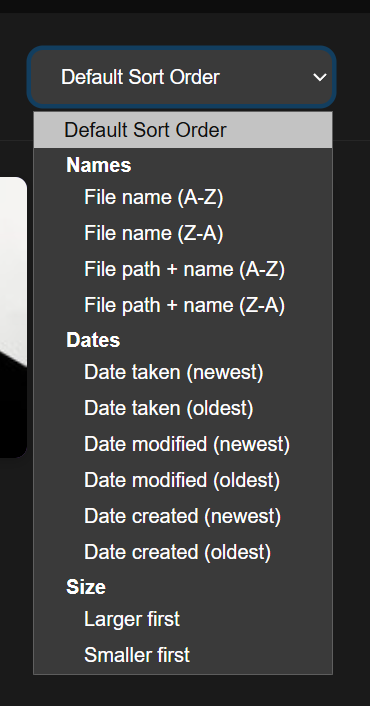
Use the Sort dropdown at the top-right of the photo area to reorder a person's photos. The choices are grouped:
- Names: File name (A-Z or Z-A), or File path + name (A-Z or Z-A).
- Dates: Date taken, Date modified, or Date created - each newest-first or oldest-first.
- Size: Larger first or Smaller first.
Date and Size options only appear when enough of the person's photos actually carry that information (at least half). Photos that are missing a date always sit at the bottom - the app never makes up a date it does not have.
Filtering Photos
Click the Filter button at the top of the photo area to narrow down what is shown:
- File type - tick or untick boxes (for example JPG, PNG, HEIC) to show only certain kinds of file.
- Path contains - type some text to show only photos whose folder or file name contains that text.
- Clear filters - removes all filters and shows everything again.
A filter only affects the person you are currently viewing.
Grouping Photos
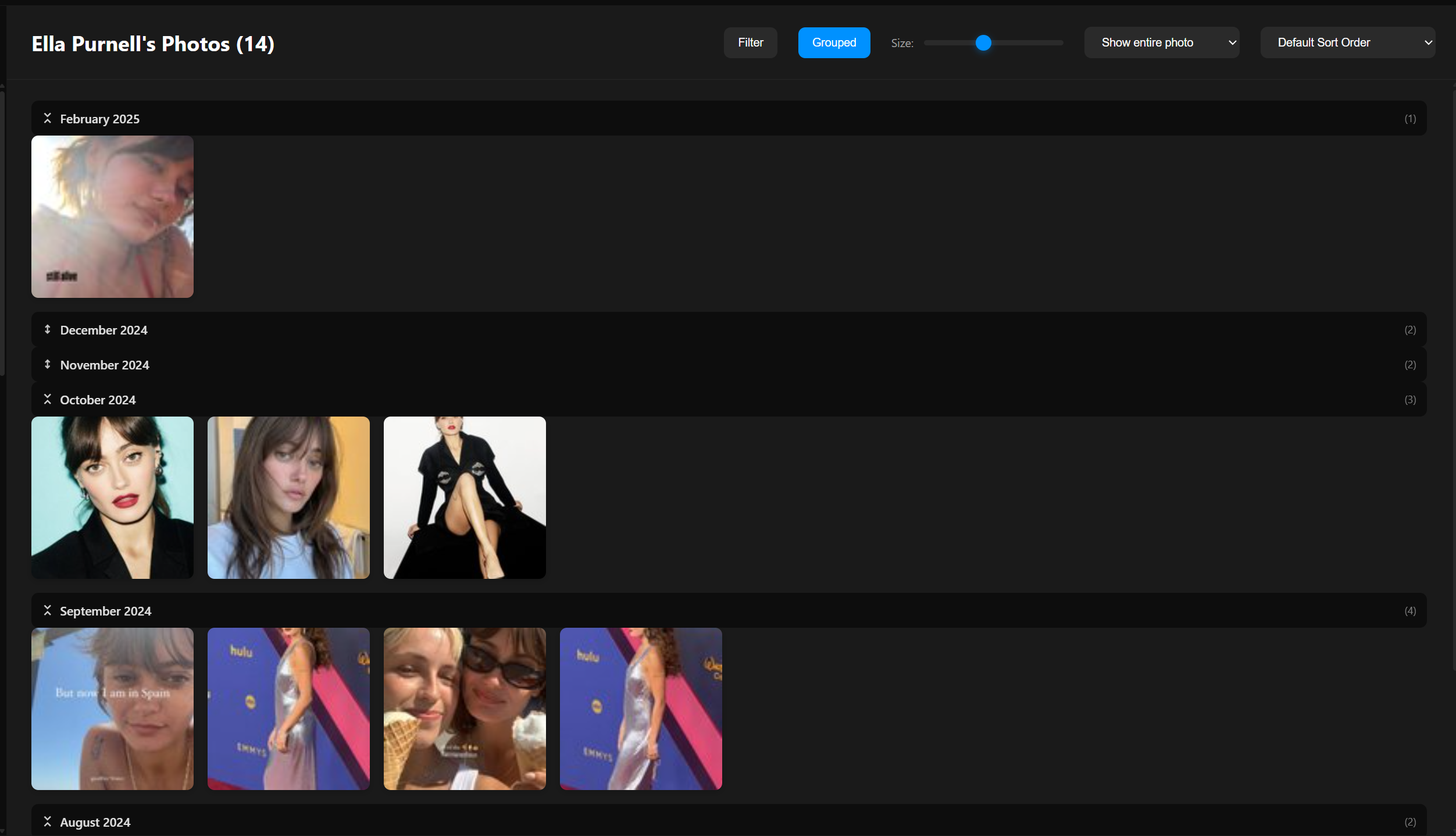
Click the Group button to split the grid into labelled sections. Pick one of:
- Folders - one section per folder the photos live in.
- Date taken, Date modified, or Date created - by Days, Weeks, Months, or Years.
- Others - Camera make/model.
- No grouping - returns to a single, flat grid.
Each section has a heading you can click to fold it open or closed. As with sorting, date and camera options only appear when enough photos carry that information, and anything without a value goes into a "No Data Available" section at the bottom.
Hiding Individual Photos
To hide one photo without hiding the whole person:
- Right-click the photo (or use its three-dot menu).
- Click Hide photo.
To see hidden photos again, turn on Show hidden photos in General Settings. Hidden photos then appear with diagonal lines across them, and you can Unhide them from the same menu.
Removing or Moving a Photo (Remove/Transfer Tag)
Sometimes the app puts a photo with the wrong person, or you simply want to move it to someone else. You can fix this by hand, one photo at a time.
- Right-click the thumbnail in the grid (or click its three-dot menu).
- Click Remove/Transfer Tag.
- A window titled "Transfer Face To..." opens.
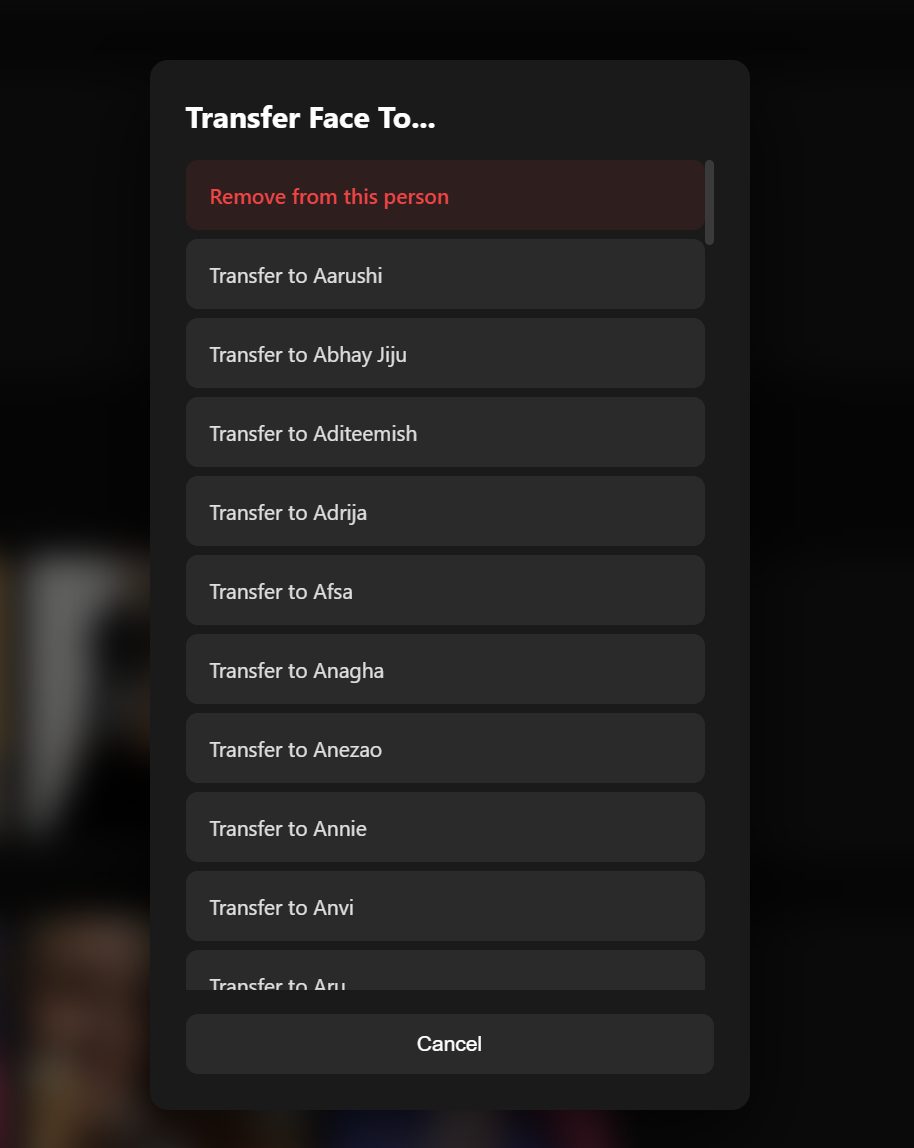
The window lists every person you have named - whether they are currently hidden or not. (Unnamed people such as "Person 1" and the "Unmatched Faces" group never appear here, since you can only move a photo to a real, named person.) If the list is long, scroll down to find the right person.
Your two choices are:
- Remove from this person (the red option at the top) - takes the photo out of this person's group. It is not deleted; it is sent back to Unmatched Faces. Use this when a photo was matched to the wrong person and there is no one to move it to.
- Transfer to [Name] - moves the photo into that person's group instead. Click the name you want.
Click Cancel to close the window without changing anything.
If this person appears in the same photo more than once (or you picked several photos), the options show a count, such as "Transfer to Anagha (3 photos)", and the action applies to all of them at once - but only for this person. Other people in the same photo are left alone.
This makes future results better. These manual corrections are remembered. The next time the app recalibrates (for example after you change the threshold or add new photos), it treats your choices as a strong hint about who is who, so its automatic grouping becomes more accurate over time. In short, every time you fix a photo by hand, you are also teaching the app.
Finding a Photo on Your Computer (Open in File Explorer)
Want to know exactly where a photo lives on your disk? You can jump straight to it.
- Right-click the thumbnail in the grid (or click its three-dot menu).
- Click Open in File Explorer.
Windows File Explorer opens to the folder that holds the photo, with that photo already highlighted, so you can see its location, copy it, or work with it elsewhere. Your original photo is not changed in any way.
This option appears for one photo at a time (it is not shown when you have several photos selected, since it points to a single file).
About Duplicate Photos
Each person's grid shows one tile per photo file. If the same person appears more than once in a single picture (for example a collage), or if you have the exact same file saved in two places, the app shows it just once for that person instead of repeating it. The photo still appears for every different person who is in it.
Exporting Photos into Folders
Exporting saves copies of your photos into tidy folders - one folder per person - at a place you choose. Your original photos are never moved or changed.
Export One Person
- Click the three-dot menu next to a person (or right-click the row).
- Click Export photos....
- Choose where to save them.
Export Selected or All People
- Open Settings and click Export Photos.
- You will see a searchable list of people. Tick the ones you want (use the Search people box to find someone quickly, or Select all / Clear).
- Click Export Selected to save the ticked people, or scroll down and click Export All Named People to save everyone who has a real name.
- Choose where to save them.
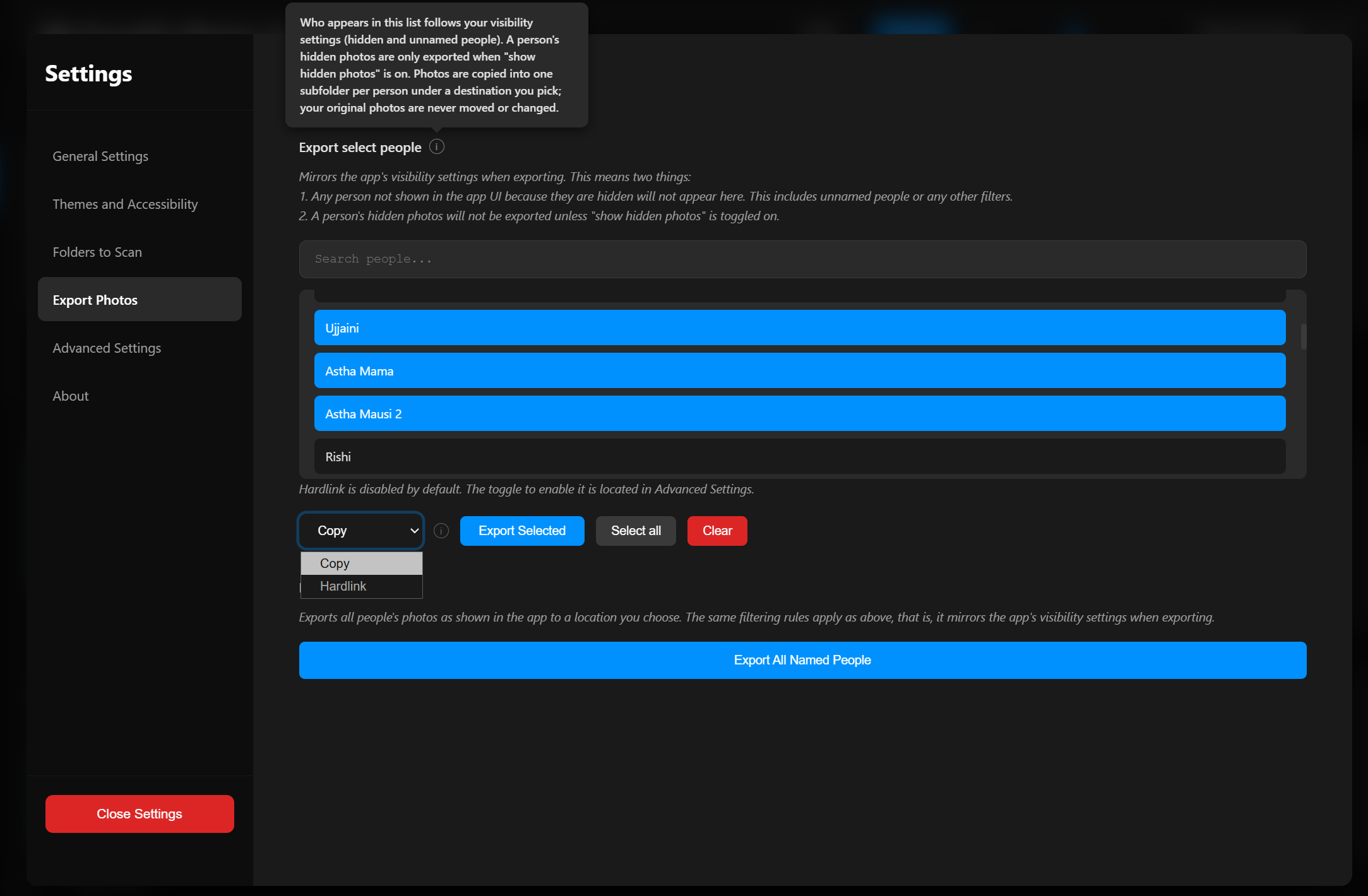
You can also export several people at once straight from the People list using multi-select.
The export list follows your visibility settings: hidden or unnamed people do not appear, and a person's hidden photos are only included when "Show hidden photos" is on. Photos that include a hidden person are also left out of the other people's exports, unless "Show hidden people in group photos" is on.
While exporting, the progress bar at the bottom shows how far along it is, with a Cancel button. When it finishes, a summary appears with an Open Folder shortcut.
Copy or Hardlink (ADVANCED)
DO NOT USE IF YOU ARE NOT SURE
In the Export Photos screen there is a dropdown that chooses how files are saved:
- Copy (default) - makes normal, independent duplicate files. This works to any drive and is the safe choice for most people.
- Hardlink - saves space by pointing to the same data as your original, but only works when the destination is on the same drive as your photos (it falls back to Copy across drives). Because a hardlink shares its data with the original, editing the copy in another app would also change the original. Hardlink is off by default; you turn it on in Advanced Settings.
Settings Explained
Click the Settings button at the bottom-left to open Settings. The list on the left has six sections: General Settings, Themes and Accessibility, Folders to Scan, Export Photos, Advanced Settings, and About. Click the small i next to any option to read a tooltip explaining it.
General Settings
Threshold
- Controls how similar two faces must be to count as the same person.
- Lower values (around 30-40%) are more relaxed and may group different people together.
- Higher values (around 50-60%) are stricter and may split one person into several entries.
- Default: 50%.
- After changing it, click Recalibrate to regroup all faces. This is fast and does not rescan your photos.
- A good starting point is 45-50%; adjust based on what you see.
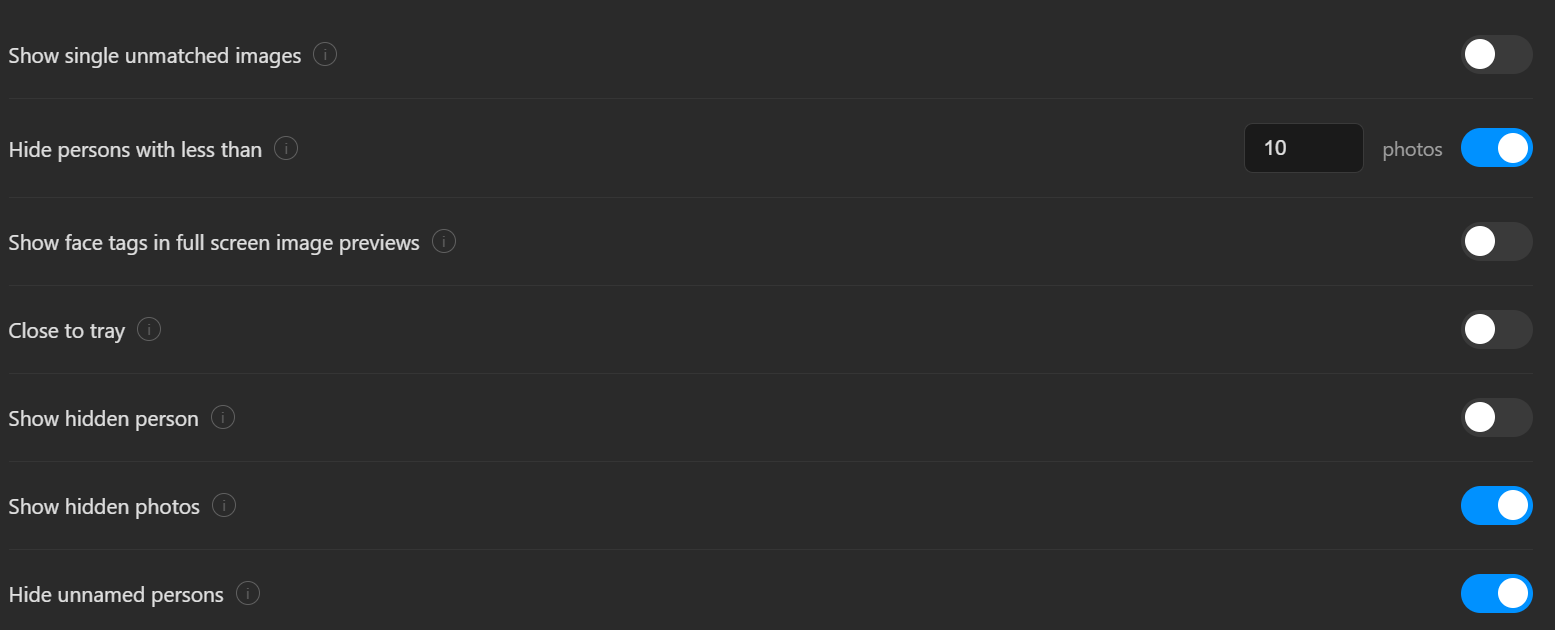
Show single unmatched images
- When ON, the app shows a group called "Unmatched Faces" for faces that do not match anyone else (often screenshots, memes, or one-off pictures).
- When OFF, those single faces are hidden.
- Default: OFF.
Hide persons with less than [N] photos
- When the toggle on the right is on, people with fewer than the number you set are hidden from the list.
- Useful for removing people who only appear once or twice.
- Default: OFF (set to 2 when turned on).
Show face tags in full screen image previews
- When ON, the large photo preview marks each person's name on the picture, so you can see who is who in group photos.
- Default: ON.
Show photo details in full screen image previews
- When ON, the large photo preview includes a side panel listing the photo's details (file name and path, image size, file size, date taken, camera, and so on). When OFF, the preview shows just the photo, using the full width.
- Default: ON.
Close to tray
- When ON, clicking the X hides the app to the system tray instead of quitting. To fully quit, right-click the tray icon and choose Quit.
- Default: ON.
Show hidden person
- When ON, people you previously hid reappear in the list with "(hidden)" after their name, so you can unhide them.
- Default: OFF.
Show hidden people in group photos

- Photos that include a hidden person are normally removed from everyone else's photos and exports. When ON, those photos are shown again, while the hidden person's own entry stays hidden.
- Turn this on if a person looks like they are missing photos you know they appear in (see Troubleshooting).
- Default: OFF.
Show hidden photos
- When ON, photos you hid reappear with diagonal lines across them, so you can unhide them.
- Default: OFF.
Hide unnamed persons
- When ON, everyone you have not renamed yet is hidden from the list. (It does not hide "Unmatched Faces".)
- Important: the first time you scan, keep this OFF so you can see and name new people.
- Default: OFF.
Rescan frequency for changes in photos
- Controls how often the app checks your folders for new or deleted photos when it starts.
- Options: after every restart; on the first restart each day; on the first restart each week; or manually only.
- If you choose Manually, you will need to use the Rescan For Changes button in "Folders to Scan" yourself.
Themes and Accessibility
Theme
- Choose Dark theme or Light theme for the whole app. In the light theme the title bar picks up your accent colour.


Accent color
- Click any of the coloured circles to set the highlight colour used across the app (buttons, sliders, and so on). Each circle previews the exact shade for your current theme. The set was retuned in 0.8.2 to six colours chosen to stay readable in both themes.
- Until you pick one, the app uses a theme-matched default: green in the light theme, cyan in the dark theme. Picking a circle keeps that colour in both themes.
Custom accent
- Prefer your own colour? The Custom accent well below the circles opens a full colour picker, including an eyedropper for grabbing a colour from anywhere on your screen. Text on coloured buttons automatically switches between black and white so it stays readable whatever you pick.
- This option is newly implemented, so it sits behind a switch: turn on Custom colours in Advanced Settings first. Until then the well is visible but greyed out.

Increase contrast
- Adds stronger borders and higher-contrast colours, making areas that are otherwise separated only by a faint shade of grey easier to tell apart.
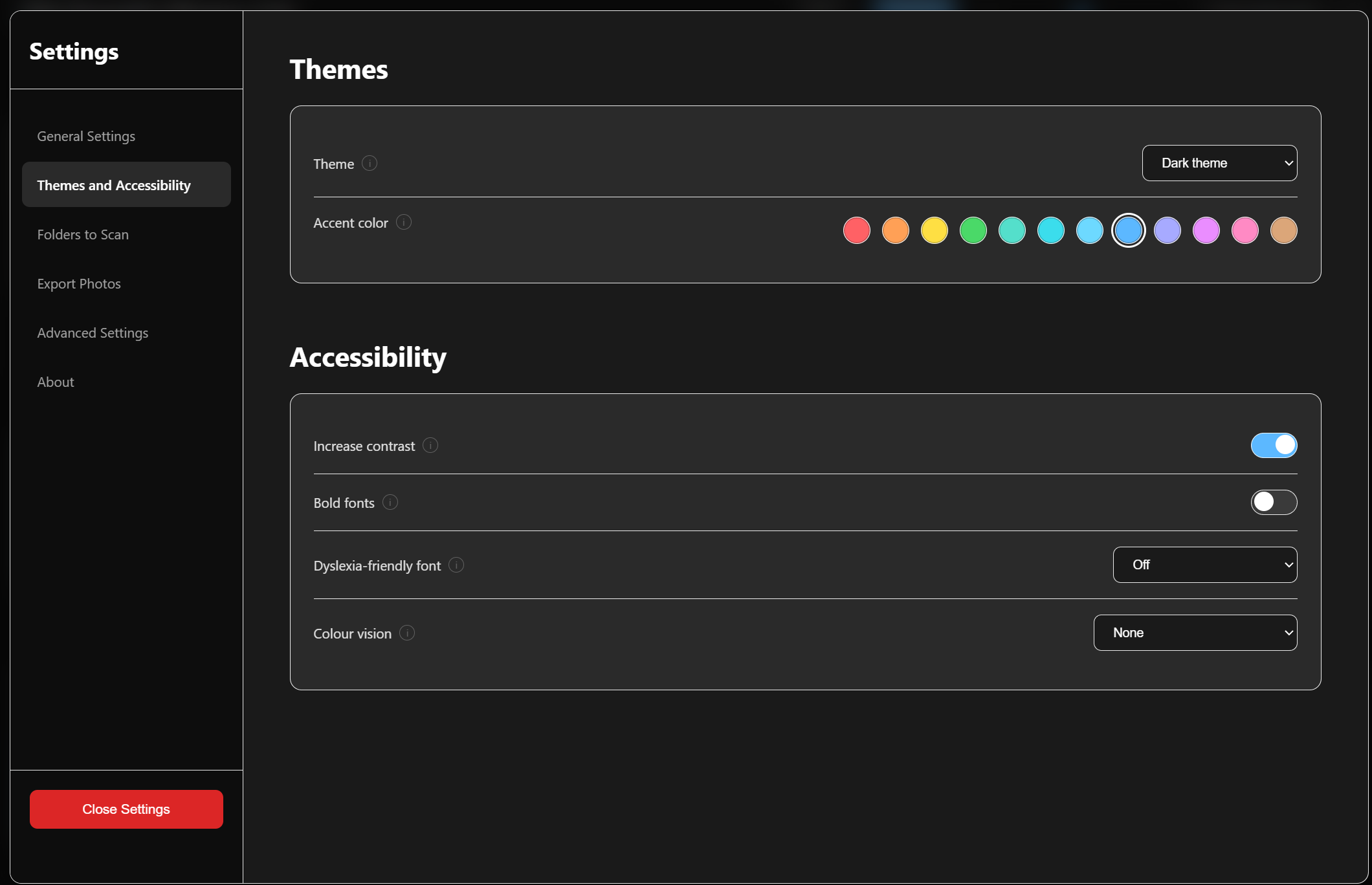
Bold fonts
- Makes the app's text heavier and easier to read. Text that is already bold is left as-is.
Dyslexia-friendly font
- Switches the app to a typeface designed to be easier to read with dyslexia. Choose Off, OpenDyslexic, or Atkinson Hyperlegible.
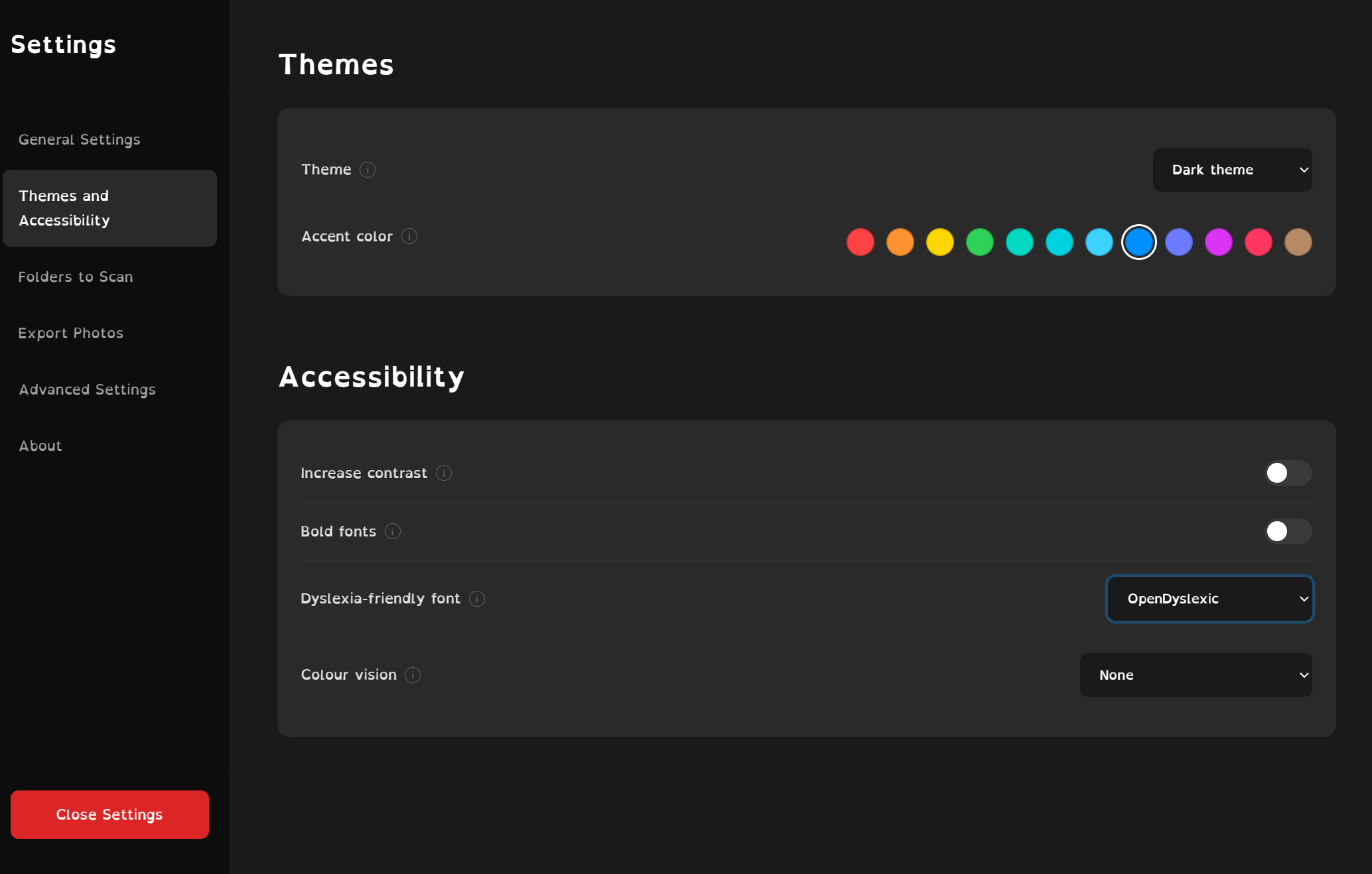
Colour vision
- Helps tell things apart for a chosen type of colour blindness: Protanopia (no red), Deuteranopia (no green), Tritanopia (no blue), or Achromatopsia (no colour). Rather than filtering the screen, the app swaps its accent colours for a palette chosen to stay distinguishable in that mode and leans on cues that do not rely on colour at all, such as the caution mark on red buttons. This also plays nicely with any colour filter you already run in Windows.
- Set to Auto (match Windows), the default, it follows the colour filter chosen in Windows Settings > Accessibility > Colour filters automatically.
Reduce transparency
- Replaces the blurred, see-through backdrop behind dialogs and the photo preview with a solid background, and removes their shadows. Until you change it here, this follows the transparency setting in Windows (Settings > Accessibility > Visual effects).
Folders to Scan
Include folders for scanning
- Add every folder that contains photos you want organised. Subfolders are included automatically.
- Use + Add Folder to add one and - Remove Folder to remove the selected one.
- Note: a network location must be online during each scan; if it is offline, its photos are treated as deleted.
Exclude subfolders from scanning
- Add specific subfolders you want skipped. This takes priority, so a folder added here is never scanned even if it sits inside an included folder.
Wildcard Exclusion
- Skip files or folders whose name matches a pattern. Separate several patterns with commas. Use
*as a wildcard:*.gif- skip every GIF file.*thumbnail*- skip anything with "thumbnail" in its name.C:\Photos\Private- skip that exact folder.
Rescan For Changes
- Click this to check your folders right now for new or deleted photos. Use it after you add or remove photos on your computer.
Export Photos
This section lets you export several people or everyone at once. See Exporting Photos into Folders for full steps. In short: tick people in the list (or Select all), choose Copy or Hardlink, and click Export Selected - or use Export All Named People to export everyone with a real name.
Advanced Settings
These are extra options most people will not need to change.
Use system resources dynamically
- When ON, the app eases off your computer when it is minimized to the tray, so it does not slow down your other work. When OFF, it always runs at full speed.
- Default: ON. (To benefit from this, use "Close to tray".)
Show development options
- Shows extra technical information, such as how many faces are tagged for each person, and a "Remove all tags" option in a person's menu. Most people should leave this OFF.
- Default: OFF.
Thumbnail Cache
- Shows how much space the saved thumbnails use, with a Clear Cache button. Thumbnails make photos load quickly; clearing them is helpful if photos look wrong after being edited outside the app. They rebuild automatically the next time you open a person.
Hardlink export (ADVANCED)
- Turns on the Hardlink option in the Export Photos screen (see Copy or Hardlink). Off by default.
Custom colours (NEW)
- Unlocks the Custom accent picker in Themes and Accessibility. Off by default because the feature is newly implemented and has not been tested in every corner of the app yet, so unusual colour picks may look a little odd in places while it matures. Your picked colour is kept even while this is off and comes back when you turn it on again.

Write XMP sidecar files (ADVANCED)
- Lets the app save the face names into small files next to your photos so other photo apps can read them. See Sharing Names with Other Photo Apps (XMP) below for full details.
About (and the Log)
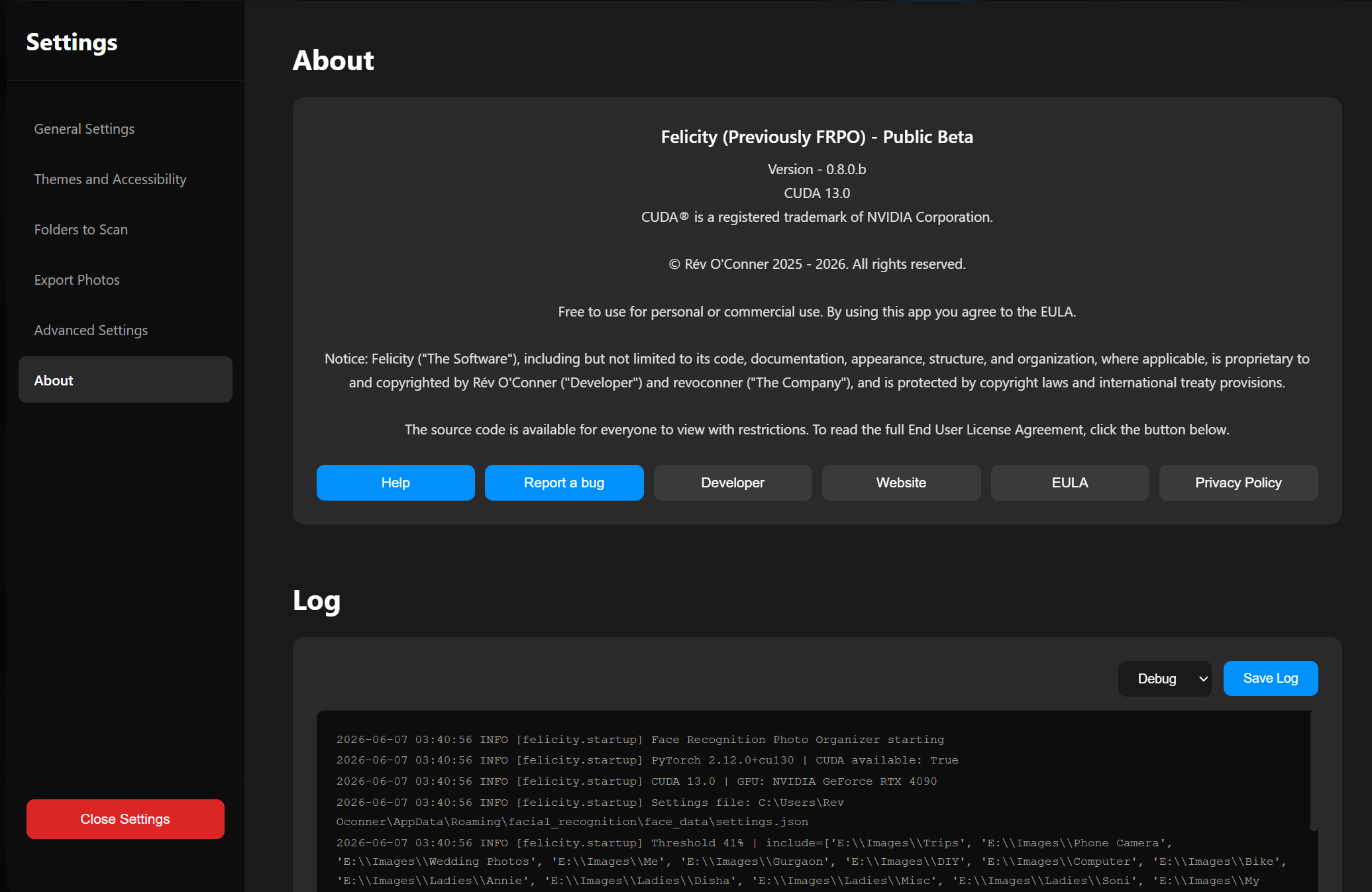
The About section shows the version and licence information, plus a row of buttons:
- Help - opens a small window with links to the online help and an offline help PDF.
- Report a bug - opens the page where you can report problems.
- Developer, Website, EULA - open the matching web pages.
- Privacy Policy - explains that the app does not collect any data.
Below About is the Log. The log lists what the app has done (scanning, errors, settings changes, and so on). You can:
- Choose Normal or Debug detail from the dropdown. Use Debug only when you are chasing a problem.
- Click Save Log to save it as a text file, which is helpful when reporting a bug.
Sharing Names with Other Photo Apps (XMP)
This is an optional feature for people who also use other photo software such as digiKam or Lightroom. When turned on, the app writes a small .xmp file next to each tagged photo that records where each face is and who it is, so those other apps can show the same names.
This is the only feature that writes anything into your photo folders, so it asks for your permission once before turning on.
To turn it on:
- Open Settings and click Advanced Settings.
- Turn on Write XMP sidecar files.
- A message appears explaining what it does. Read it, tick I understand, and click Confirm.
- A list of your scan folders appears under "Folders to write XMP into". Click the folders you want the
.xmpfiles written into. Only the folders you pick will get them.
Important points to know:
- The
.xmpfiles are written on the next scan (so trigger a rescan, or wait for the app's normal rescan, after turning it on). - Your original photos are never changed - the names go into separate small files beside them.
- These
.xmpfiles live on your disk next to your photos. Uninstalling the app does not remove them, and turning the feature off later does not delete files already written - you would remove those yourself. - Only people you have named are written. People and photos you have hidden follow the same show/hide rules as exporting.
Tips and Best Practices
Start with the default settings
- Use the 50% threshold first, scan your photos, then adjust up or down based on the results.
- I personally use 41%.
Adjust the threshold based on what you see
- Different people grouped together? Raise the threshold and click Recalibrate.
- One person split into several entries? Lower the threshold and click Recalibrate.
Name people as you go
- Once someone is named, the app remembers them forever, and new photos of them appear under their name automatically.
Be patient during the first scan
- The first scan is the slowest and only happens once. You can minimize the app to the tray and keep using your computer; with "Use system resources dynamically" on, it steps aside while minimized.
Reduce clutter
- Hide "Unmatched Faces", or use "Hide persons with less than" a couple of photos, to focus on the people who matter.
Pin and multi-select
- Pin your most important people to the top, and use Ctrl-click / Shift-click to act on several people at once.
Adding new photos later
- When you add photos to your folders, open the app and they are picked up on the next scan (depending on your rescan frequency). You can also force it: Settings > Folders to Scan > Rescan For Changes. New photos of people you have already named appear under their names automatically.
Keyboard and Mouse Actions
In the photo grid
- Single-click a photo - open the large preview.
- Double-click a photo - open it in your normal image viewer.
- Right-click a photo - photo menu (Make primary photo, Open in File Explorer, Remove/Transfer Tag, Hide photo).
In the people list
- Click a person - view their photos.
- Ctrl-click - add or remove a person from a multi-selection.
- Shift-click - select a range of people.
- Right-click (or three-dot menu) - person menu.
- Esc - clear the selection.
In the photo preview (lightbox)
- Left Arrow - previous photo.
- Right Arrow - next photo.
- Esc - close the preview.
The window
- Drag any edge or corner - resize the window.
- Double-click the title bar - maximise or restore.
Common Questions
Why is one group called "Unmatched Faces"? This is a special group for faces that do not match anyone else - usually screenshots, memes, profile pictures, or people who appear only once. You can hide it from General Settings ("Show single unmatched images" off).
Will the app change my original photos? No. The app only reads your photos. It never edits, moves, or deletes the original files. All organising happens in the app's own database. (The optional XMP feature writes separate small files next to your photos, but still never changes the photos themselves.)
What happens if I delete photos from my computer? The next time the app scans, it removes those photos from its list automatically.
Can I use this on more than one computer? The app stores its data in your user account on each computer, so each machine keeps its own separate list. You would scan and organise on each computer separately.
Where is my data stored?
In C:\Users\[YourUsername]\AppData\Roaming\facial_recognition\face_data, which you can also reach by typing %appdata%\facial_recognition\face_data into the address bar. This holds the photo list and face data. Your original photos stay where they are.
Can I back up my data? Yes. Back up the folder above to keep all your names and organisation. Restore that folder to recover everything.
Why does the app use a lot of CPU or GPU? Recognising faces is heavy work. The app uses your graphics card when it can to go faster. Turn on "Use system resources dynamically" to ease off while the app is minimized.
Recommended Hardware
- GPU: NVIDIA RTX 2000 series or higher recommended. Since 0.8.2, an older or unsupported card falls back to the CPU instead of failing, so the app still runs; it is just slower. The complete list of supported GPU architectures:
- Blackwell (Compute 10.0+): e.g. RTX 5000 series (like the RTX 5090), GB200, B200
- Hopper (Compute 9.0): e.g. H100, H200
- Ada Lovelace (Compute 8.9): e.g. RTX 4000 series, L4
- Ampere (Compute 8.0, 8.6): e.g. RTX 3000 series, A100
- Turing (Compute 7.5): e.g. RTX 2000 series (older GTX 1000 series devices might be problematic with newer updates)
- Storage: HDD with 7200 rpm or higher; NVMe / PCIe SSD preferred
- Network storage: Wired connection recommended
- Memory: 16 GB DDR4 or better
- CPU: AMD Ryzen™ 5 5500 (or equivalent Intel chip) or higher
- OS: Windows 11 23H2 or higher
Note from the developer
Except for the GPU, there is no definitive way for me (the developer) to test the hardware requirements of Felicity across all the different varieties and combinations of hardware. The list above should only be taken as an estimated requirement.
The actual hardware the app was tested on is provided below for transparency.
Test Bench 1
- Processor: AMD Ryzen Threadripper 7960X 24-Cores ~4.2 GHz
- Memory: 128 GB (130570 MB) DDR5 ECC RAM
- OS: Windows 11 Enterprise LTSC 24H2 (Build 26100) (26100.ge_release.240331-1435)
- GPU: NVIDIA GeForce RTX 4090
- GPU driver version: 591.44
- NVIDIA CUDA: 13.1.86 driver
- Network storage: 40 gigabit/s
- Storage: WD BLACK SN850X 4TB WDS400T2X0E-00BCA0 (729,962.6 IOPS) & Seagate 8TB ST8000NM017B-2TJ103 7200RPM HDD (5586.43 IOPS)
Test Bench 2
- Processor: AMD Ryzen Threadripper 3960X 24-Cores ~4.2 GHz
- Memory: 64 GB DDR4 RAM
- OS: Windows 11 Enterprise 23H2 (22631.1.ni_release.220506-1250)
- GPU: NVIDIA GeForce RTX 3060 Ti
- GPU driver version: 560.76
- NVIDIA CUDA: 12.6.65 driver
- Network storage: 40 gigabit/s
- Storage: Samsung 980 PRO 2 TB MZ-V8P2T0 (~320,000 IOPS) & Samsung 850 EVO 1TB MZ-75E (~93,000 IOPS)
Troubleshooting
A person is missing photos after updating to 0.8.2
- This one is a deliberate change in behaviour, not a bug. It is the first time a release has changed how something already worked rather than only adding to it, so it is worth spelling out: from 0.8.2, a group photo that includes a hidden person is removed from the photos and the exports of everyone else in that picture. Hiding a person is supposed to keep them out of sight, and showing their group photos under other people works against that, so keeping them hidden is the default as the better privacy choice over the long term.
- Nothing has been lost. Your data is untouched - every photo, name, and tag is still exactly as it was, and no rescan or recalibration is needed. Turn on Show hidden people in group photos in Settings > General Settings and all of those photos come straight back.
CUDA error/ PyTorch / Cu kernel error, the app won't show photos after a scan
- Fixed in 0.8.2: an unsupported device or driver now falls back to the CPU instead of failing to start the AI. Scanning is slower on the CPU, but it works.
- In 0.8.0.b and earlier the app had a bug here where it failed to use the AI instead of falling back to CPU. If you are on an older version, update to 0.8.2.b rather than downgrading to 0.7.0.b.
The app takes a long time to start
- If this is a new install, it's expected behavior, as the AI model will be unpacked and initalised for first time use. If it's slow to start all the time, then that's a bug you have caught. I would love to have a bug report from you.
It seems stuck loading photos
- For a person with a very large number of photos, the first load can take a moment while thumbnails are built. After that it is fast.
The app will not start scanning
- Make sure you have added at least one folder in Settings > Folders to Scan.
- Check the folder path is correct and the drive is available.
- Try Settings > Folders to Scan > Rescan For Changes.
No faces are found
- Make sure the photos actually contain visible faces.
- Check the files are a supported type (JPG, PNG, HEIC, and so on).
- Very small or blurry faces may not be detected.
The same person shows up as several different people
- Raise the Threshold in General Settings and click Recalibrate. Try 50-60%.
Different people are grouped together
- Lower the Threshold and click Recalibrate. Try 30-40%.
The app uses a lot of CPU resources while scanning
- Turn on "Use system resources dynamically", minimize to the tray while scanning, and close other heavy programs. The first scan is always the heaviest.
Photos will not open in my image viewer
- Make sure Windows has a default app set for image files. You can set one by right-clicking an image in File Explorer and choosing "Open with".
A name disappeared after recalibration
- This should not happen; names are tied to faces and should always persist. If it does, please report it as a bug.
Thumbnails look wrong or do not match the face
- Go to Settings > Advanced Settings and click Clear Cache. The thumbnails rebuild automatically the next time you open that person (which may take a moment for someone with many photos).
Photos on a network drive show as deleted
- The network location must be online during each scan. If it is offline when the app scans, those photos are treated as deleted. Make sure the drive is connected and has the same drive letter, then rescan.
- (To use a network share, map it to a drive letter in Windows and add that drive letter as a folder to scan.)
Verification of Installer
This section is new and missing from the bundled user help documentation. The page is 'print media compatible', and can be printed to paper or exported to PDF, if needed.
This only matters if you are verifying the authenticity of the installer.
Ideally, it's not needed as long as you download the app's installer/setup file through this website which is https://felicity-app.com or https://www.felicity-app.com.
It's provided in case you downloaded the installer from a third party provider (you should not use those, it might have been tampered with and carry malware) or suspect corrupted file due to an unstable internet connection, and therefore need to verify that the installer file you have and the one I uploaded are the same.
sha256 of the installer (setup.exe)
This is the SHA256 hash of the file Felicity-0.8.2.B-Setup.exe I uploaded.
3a92e2d47ee818fd883be9a010c7edbbfc18987ac513b50eb27cdd505d841e8d
How to check
You can check yours if you use 7zip, by right clicking the installer file and going to the 7zip submenu, and selecting SHA-256.
Or otherwise you can use powershell that comes bundled with Windows by using Get-FileHash "C:\path\to\Felicity-0.8.2.B-Setup.exe" -Algorithm SHA256
- Right click the start menu, go to powershell.
- it can show up as command, terminal or cmd, depending on your Windows setup.
- If this is the case, type
powershellfirst. - It should read something like
PS > C:\Users\...
For example, Get-FileHash "C:\users\rev oconner\Downloads\Felicity-0.8.2.B-Setup.exe" -Algorithm SHA256 where "rev oconner" is the username of my Windows computer and I downloaded the file in my default downloads folder.
The same can be done via Get-FileHash "%userprofile%\Downloads\Felicity-0.8.2.B-Setup.exe" -Algorithm SHA256 where '%userprofile%' will auto resolve to your user default downloads folder and the setup file was downloaded to the default downloads folder.
The string (mixture of numbers and line) shown using either method should be an exact match to the one provided above. Although it is case insensitive.